
Life on CAD: Get to Know the Shortcuts
Introduction to CAD: A Designer’s Best Friend
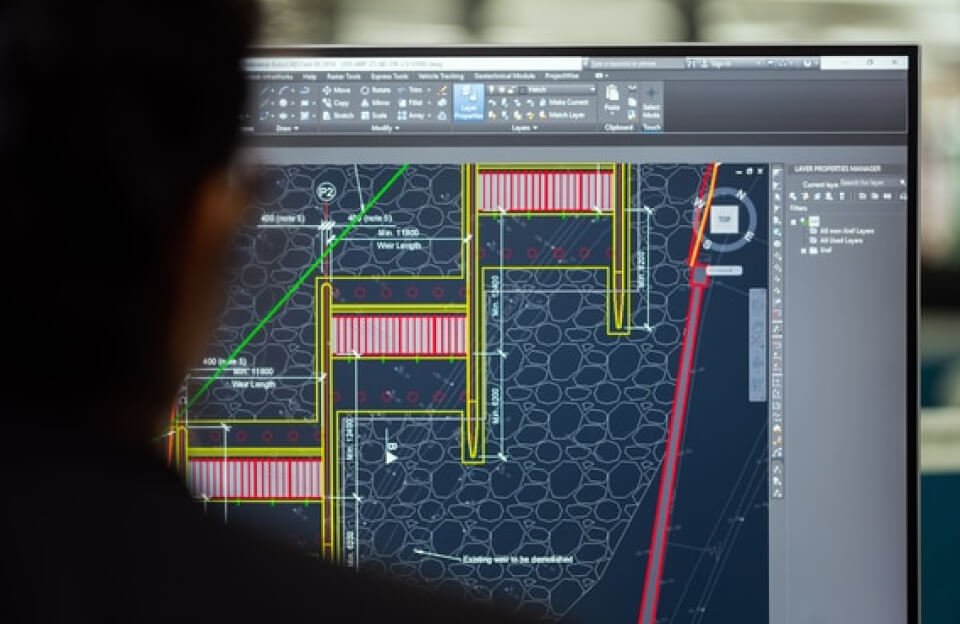
Computer-Aided Design (CAD) has emerged as an invaluable resource for designers across multiple industries such as architecture, engineering, and manufacturing. The significance of CAD lies in its ability to facilitate precise drawings and models that traditional methods cannot achieve. This revolutionary technology not only streamlines the design process but also enhances accuracy, allowing for complex designs to be easily visualized and manipulated.
Various types of CAD software are available, each offering unique features tailored to specific design needs. For instance, AutoCAD is widely used for architectural designs, while SolidWorks is favored for mechanical engineering projects. Other variants include SketchUp for 3D modeling and Revit for Building Information Modeling (BIM). The selection of CAD software often depends on the specific requirements of the project and the level of detail needed in the designs.
To fully harness the capabilities of CAD software, designers must develop a set of skills that enable them to navigate its features and functionalities effectively. This may include an understanding of geometric modeling, the ability to use various tools within the software, and proficiency in creating and editing digital drawings. Being equipped with these skills sets a strong foundation for any designer, enhancing their workflow and design capabilities.
In the context of CAD, shortcuts play a crucial role in optimizing efficiency and productivity. Understanding and mastering keyboard shortcuts can significantly reduce the time spent on repetitive tasks, allowing designers to focus on the creative aspects of their projects. As we delve deeper into this topic, the importance of shortcuts within CAD will become increasingly clear, demonstrating how they not only facilitate quicker project completion but also enhance the overall design experience.
Why Shortcuts Matter in CAD Software
In the realm of Computer-Aided Design (CAD), the efficiency and effectiveness of design processes can be considerably enhanced by the use of keyboard shortcuts. These shortcuts, which allow users to execute commands with a simple keystroke instead of navigating through multiple menus, serve as valuable tools for professionals seeking to maximize their productivity. The primary benefit of utilizing shortcuts is the significant acceleration of workflow, permitting designers to focus more on the creative aspects of their work rather than the mechanical navigation of software.
Furthermore, the implementation of shortcuts can help reduce repetitive tasks. CAD software often involves performing similar actions repeatedly, such as drawing lines, creating shapes, or adjusting dimensions. By mastering keyboard shortcuts, users can streamline these actions, minimizing the time spent on actions that do not contribute directly to the design process. This streamlined approach not only saves time but also helps keep users engaged and focused, thereby promoting a smoother overall experience.
In addition to enhancing speed and reducing repetitiveness, proficiency in shortcuts can also lead to increased accuracy and a reduction in errors. When designers can execute commands quickly and efficiently without much thought, they are less likely to get distracted or make mistakes that could compromise their work. It creates a more fluid interaction with the CAD software, encouraging a more natural approach to design and layout tasks. As designers practice and utilize their shortcut knowledge, they become more adept at utilizing all the functionalities of the software, ultimately leading to superior design outcomes.
Essential CAD Shortcuts You Need to Know
For professionals and enthusiasts working with computer-aided design (CAD) software, leveraging keyboard shortcuts is crucial for enhancing productivity and optimizing design workflows. This section outlines a selection of essential keyboard shortcuts across popular CAD applications such as AutoCAD, SolidWorks, and SketchUp, emphasizing their functions and practical applications.
In AutoCAD, the Line command can be activated quickly by pressing L, which allows users to draw lines efficiently. One can follow this with the Escape key to exit the command swiftly. Another notable shortcut is Ctrl + Z, which provides an indispensable “Undo” function, enabling users to correct mistakes without needing to redraw entire sections.
In SolidWorks, S opens the Shortcut Bar, providing instant access to a customized list of frequently used commands. Ctrl + 1 enables users to view a Standard View, aiding in assessing designs from different perspectives. Such shortcuts significantly streamline tasks and improve efficiency in design iterations.
For SketchUp, the Spacebar is particularly useful, as it activates the Move tool, allowing for the smooth repositioning of objects. Furthermore, pressing H will switch to the Hand tool, which is ideal for navigating around larger models without zooming. By incorporating these shortcuts into routine use, designers can capitalize on their effectiveness, resulting in quicker project completion times.
Adopting these essential shortcuts not only enhances individual proficiency but also contributes to a more seamless collaborative environment. Familiarity with such keyboard combinations allows designers to focus more on creativity rather than navigating complex menus, leading to increased productivity and efficiency in CAD projects.
Tips for Mastering CAD Shortcuts
Mastering CAD shortcuts is an essential skill for any user looking to enhance their productivity within design software. One effective strategy is to customize your shortcuts based on personal preference and frequently performed tasks. Most CAD programs allow users to create tailored shortcuts that suit their workflow, which can lead to significant time savings.
Moreover, regular practice is crucial when it comes to integrating these shortcuts into your daily routine. Dedicate time each day to consciously utilize a few specific shortcuts rather than relying solely on mouse interactions. This not only helps in reinforcing memory but also accelerates muscle memory, making those shortcuts second nature over time.
For users with prior experience in CAD, exploring advanced techniques can further optimize workflow. This involves not just using shortcuts, but also leveraging features such as macro commands and custom scripts that can automate repetitive tasks. For example, recording a sequence of commands that you frequently utilize can be executed with a single shortcut, dramatically improving efficiency.
Additionally, consider joining forums or online communities dedicated to CAD software. Engaging with fellow users can provide insights into new shortcuts you may not have known about and inspire you to adopt different methods for speeding up your design process. Learning from others’ experiences often leads to discovering tips and tricks that enhance productivity.
A well-organized system of shortcuts can elevate your CAD experience, streamlining your design tasks into a more fluid process. As you become proficient with these time-saving tools, you will likely notice a remarkable increase in both speed and accuracy in your projects. Remember, mastery of shortcuts requires consistent effort and adaptation, so stay committed and practice regularly.
Michaelville